Frankly screen capturing can be done easily just pressing buttons combination to do so. If you press them correctly then you will notice your screen will flash or a shutter camera sound heard.
How to take a screenshot on Samsung Galaxy S5
First method using keys / buttons combination.
- Now find a screen you wish to capture.
- Then press and hold Power + Home buttons together.
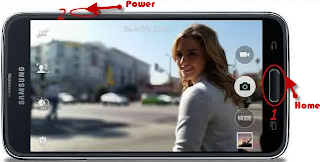
- Keep pressing them til you hear a camera shutter sound or your screen flashes.
- Done, you screen will be stored on Gallery app.

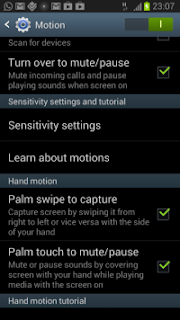
This is an easier way to capture a screen on Galaxy S5, all you need to do is just swipe your palm from left to right or otherwise on a screen you like to capture. But this feature is usually disabled by default. Thus you need to activate it first. To do so, simply follow the steps below.
- Open Settings.
- And then tap on Motions and Gestures.
- And select Palm Swipe to capture.


 How To Take Screenshot
December 31, 2015 at 9:05 PM
June 15, 2017 at 2:22 AM
Simply By pressing the lock button and home button we can take screenshot in any Samsung device. Thanks For sharing this blog.
#Mobile App Development
#Android App Development
#IOS App Development
Write down your comments here
.Want your questions or opinions to be read...?
Please use the comment area below!