In Samsung Galaxy flagship like Galaxy S3 and above usually we are provided with two methods to capture screen, first method using keys combination and the second method using a feature called Palm motion / swipe. And in this post you will be guided to use all of the methods.
How to take a screenshot on Samsung Galaxy S3
First method using keys / buttons combination.
- Now find a screen you wish to capture.
- Once you found it, then press and hold these buttons together; Home + Power.
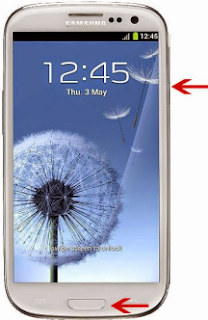
- Keep pressing it till you see you a flash or camera sound referring that the screen is captured.

This feature usually disabled by default, thus you need to firstly enable it.
- So go to Menu, select Settings.
- Now tap on Hand motion.
- Now tap on box beside Palm swipe to Capture to check the feature or enable it.
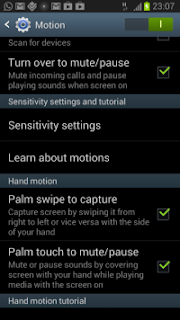


 How To Take Screenshot
July 20, 2020 at 9:11 AM
Nice to be visiting your blog again, it has been months for me. Well this article that i've been waited for so long. I need this article to complete my assignment in the college, and it has same topic with your article. Thanks, great share.
how to screenshot on Android
Write down your comments here
.Want your questions or opinions to be read...?
Please use the comment area below!